How to Convert HEIC to JPG on Windows in 2026 (Every Method, Tested)
You plugged your iPhone into your Windows PC, copied over your photos, and now every single one shows up as a .heic file that nothing can open. Windows Photo Viewer gives you an error. Paint just shows a blank canvas. Your editing software acts like the file does not exist.
You are not doing anything wrong. This is one of the most common compatibility problems Windows users run into, and it keeps happening because HEIC still is not as universally supported as JPG.
This guide walks you through every practical way to convert HEIC to JPG on Windows — whether you are using Windows 10 or Windows 11 — including which method works best in different situations and the quickest fix if you are short on time. All of these methods were personally tested on Windows 10 (22H2) and Windows 11 (24H2) using real iPhone HEIC photos, so you are not just getting theory — you are getting what actually works.
Example workflow for converting HEIC images to JPG on Windows.
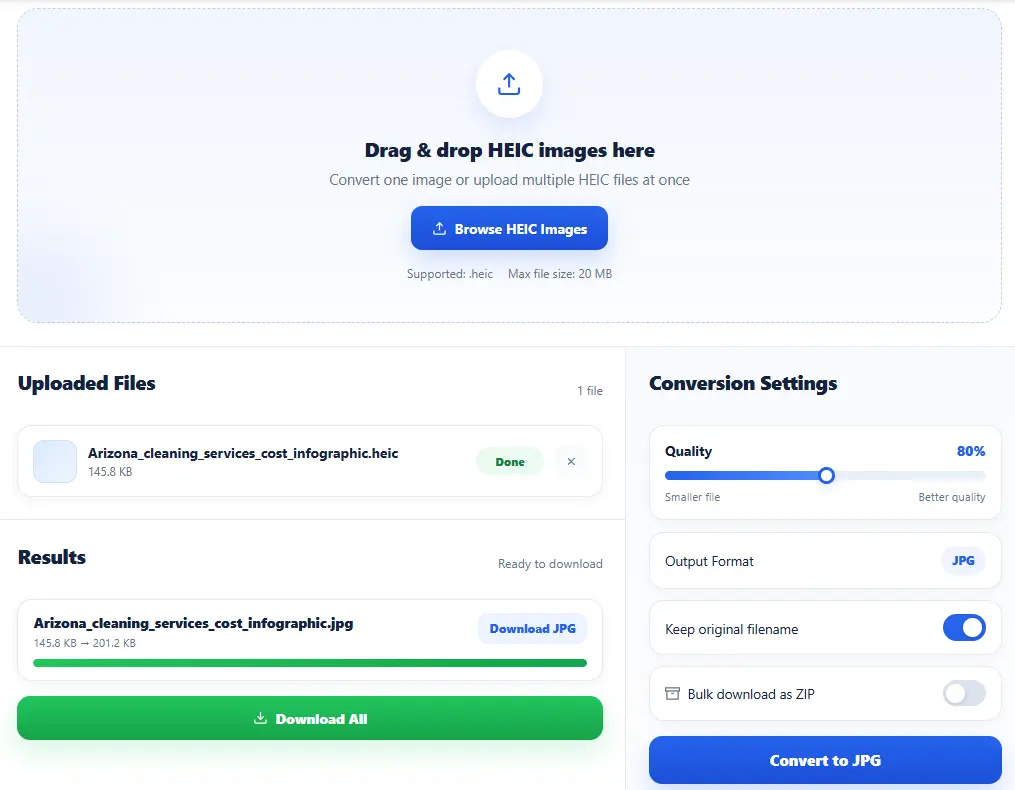
Screenshot taken during real testing on Windows 11 (24H2)
If you just want the fastest solution, use our HEIC to JPG on Windows tool. Upload your HEIC image, adjust the quality, keep the original filename if needed, and download one file or multiple files as ZIP — all in seconds.
Why Windows Can’t Open HEIC Files (The Short Version)
In September 2017, Apple released iOS 11 and quietly switched the default camera format on every iPhone from JPEG to HEIC. The reason made perfect sense on Apple’s end: HEIC files are roughly 50% smaller than JPEG at the same visual quality. A photo that is 3MB as a JPEG might be 1.5MB as a HEIC file, with no visible difference. For a phone storing thousands of photos, that adds up to gigabytes of saved space.
The problem is that HEIC was a format ahead of its time in terms of support. JPG has been the universal standard since the early 1990s. Every operating system, every browser, every photo app, and every printing service knows how to open it. HEIC does not have that history.
As of 2026, Windows still does not natively support HEIC out of the box. Windows 11 handles it if you install a specific codec from the Microsoft Store. Windows 10 requires the same codec plus a separate paid extension for HEVC video support. Even then, plenty of third-party apps on Windows — older image editors, design tools, and document software — still fail to open HEIC files even with the codec installed.
However, support on Windows depends on codecs provided by Microsoft. You can install the required codec from the official Microsoft Store.
Converting HEIC to JPG is not really a workaround anymore — for Windows users, it is just part of working with iPhone photos.
Who Actually Needs to Convert HEIC to JPG on Windows
Before getting into the methods, it helps to understand why people need to do this. The use cases are more varied than you might think.
- iPhone users who also own a Windows PC. This is the most common situation. You take photos on your iPhone, transfer them to your Windows computer to back them up, edit them, or share them, and hit a wall because nothing opens them properly.
- Graphic designers and photo editors. Adobe Photoshop for Windows supports HEIC from Photoshop 2023 onward, but only if you have the correct Microsoft codec installed. Older versions do not support it at all. Tools like GIMP and Paint.NET are even more inconsistent. Converting to JPG before editing removes all the uncertainty.
- People submitting photos to websites and forms. Most web upload forms — job applications, school portals, government websites, insurance claims, and event registration pages — accept JPG but reject HEIC. You need JPG.
- Office workers adding photos to Word or PowerPoint documents. Microsoft Office can display HEIC photos if the HEIF codec is installed, but the behavior is inconsistent across Office versions and computers. Converting first guarantees the photo shows up correctly for everyone who opens the document.
- People printing photos. Most online print services accept JPG but will not process HEIC files.
- Parents and teachers sharing classroom photos. School platforms, parent communication apps, and learning management systems almost all expect standard JPG uploads.
- Small business owners. Product photos taken on an iPhone need to go on e-commerce platforms like Shopify, Etsy, Amazon, and WooCommerce. All of them want JPG or PNG.
Method 1: Use an Online Converter (Fastest, No Install Needed)
If you just need to convert a handful of photos right now and do not want to install anything, an online HEIC to JPG converter is your fastest option.
How it works: You upload your HEIC files through a browser, the conversion happens on the server or directly in the browser depending on the tool, and then you download the JPG files.
Best free online tools in 2026:
- heic.digital — No file limits, no registration, ZIP download for batch files, auto-deletes after one hour
- FreeConvert HEIC to JPG — Batch conversion, supports up to 1GB per file
- CloudConvert — Quality and resolution controls, useful for professional work
Step-by-step for the simplest option:
- Open your browser and go to an HEIC converter or use HEIC to JPG on Windows.
- Click the upload button or drag and drop your HEIC photos into the upload zone.
- Wait for the conversion — it is usually done in seconds for single photos.
- Download individual files or choose Download All as ZIP for batch conversions.
What to watch out for with online converters: Privacy is the main concern. You are uploading personal photos to a third-party server. For family photos or general pictures, that may be fine. For anything sensitive — medical documents photographed on your phone, ID cards, or private correspondence — an offline method is safer.
Best for: Quick, one-off conversions, a handful of photos you need in JPG format right now, or converting on a computer where you cannot install software.
Method 2: Windows Photos App (Built-In, No Download Required)
Windows 11 has a built-in path to convert HEIC to JPG using the Photos app, but it requires installing a free codec first. This is the best approach if you want a native Windows solution without paying for anything.
Step 1: Install the HEIF Image Extensions (Free)
- Open the Microsoft Store on your Windows PC.
- Search for “HEIF Image Extensions”.
- Click “Get” to install it.
- If prompted, also search for and install “HEVC Video Extensions”. On Windows 10, this may cost $0.99.
Once the codec is installed, Windows can read HEIC files. You will see thumbnails in File Explorer and be able to open them in Photos.
Step 2: Convert a Single HEIC File to JPG
- Open your HEIC file by double-clicking it.
- Click the three-dot menu in the top-right corner.
- Select Save as.
- In the “Save as type” dropdown, choose JPG.
- Name the file and choose where to save it.
- Click Save.
That is it. Your HEIC file is now a JPG.
Limitation: The Photos app converts one file at a time. If you have 200 photos from a vacation, this method will take a while.
Best for: Single files, occasional conversions, and users who prefer built-in Windows tools.
Method 3: Microsoft Paint (Windows 11 Only)
This is a lesser-known method that works well for single files. If you have installed the HEIF codec, Paint can open and resave HEIC files as JPG.
- Right-click your HEIC file in File Explorer.
- Select Open with → Paint.
- Once the image loads, press Ctrl + Shift + S or go to File → Save as.
- In the dropdown, select JPEG.
- Save the file.
Paint preserves image quality well for most photos. One drawback is that it strips EXIF metadata, such as camera settings, date, and GPS location. If that matters to you, use a different method.
Best for: Quick one-off conversions when you are already in Paint and do not need metadata preserved.
Method 4: CopyTrans HEIC for Windows (Free, Batch Capable, Offline)
CopyTrans HEIC is a free desktop tool specifically built for this problem. It integrates directly into Windows Explorer’s right-click menu, which makes converting HEIC to JPG very convenient.
It converts up to 100 images in one batch, preserves EXIF data, and works offline — your photos never leave your computer.
How to Set It Up
- Download CopyTrans HEIC from copytrans.net/copytransheic.
- Run the installer and follow the prompts.
- Once installed, no further setup is needed.
How to Convert
- Open File Explorer and navigate to your HEIC files.
- Select the files you want to convert.
- Right-click the selection.
- Choose Convert to JPEG with CopyTrans.
The JPG files appear in the same folder as the originals.
Best for: Regular converters, batches of 10–100 photos, and privacy-conscious users who do not want to upload photos to a website.
Method 5: IrfanView (Free, Best for Large Batches — 100+ Photos)
IrfanView is a free, fast, and lightweight image viewer for Windows that has been around since 1996. If you have hundreds of HEIC photos from a trip or project, IrfanView is one of the best options.
Setup
- Download IrfanView from irfanview.com.
- Also download the IrfanView Plugins package from the same site.
- During or after installation, you may also need the HEIF Image Extensions from Microsoft Store.
How to Batch Convert
- Open IrfanView.
- Go to File → Batch Conversion/Rename.
- Click Add or Add All to load your HEIC files.
- Under Output format, select JPG / JPEG.
- Click Options to adjust quality. Around 85–95% is usually the sweet spot.
- Choose an output folder.
- Click Start Batch.
IrfanView processes files quickly even in large volumes. It also preserves EXIF metadata by default and gives you more control over output quality.
Best for: Power users, photographers, large photo libraries, and anyone converting 100+ files at once.
Method 6: Change Your iPhone Settings to Shoot JPG Going Forward
This will not convert your existing HEIC photos, but it prevents new ones from being created in HEIC format in the first place. If the compatibility headache has gotten old and you do not need the storage savings, this is the simplest long-term fix.
As explained in Apple’s support documentation, iPhones running iOS 11 and later can be set to shoot in “Most Compatible” mode, which saves photos as JPEG instead of HEIC.
- Open Settings on your iPhone.
- Tap Camera.
- Tap Formats.
- Select Most Compatible instead of High Efficiency.
From that point forward, every new photo you take will be saved as a JPEG. Your existing HEIC photos will not be affected — you will still need to convert those using one of the methods above.
The trade-off: JPEG photos take up roughly twice as much storage as HEIC photos at equivalent quality. If your phone storage is already tight, this setting will fill it faster.
Best for: People who frequently share photos with Windows users, upload to websites often, or are simply tired of constant conversion.
Which Method Should You Use?
| Situation | Best Method |
|---|---|
| Need 1–5 photos converted right now | Online converter (Method 1) |
| Want a built-in Windows solution | Photos app + HEIF codec (Method 2) |
| Occasional batches of 10–50 photos | CopyTrans HEIC (Method 4) |
| Large batches of 100+ photos | IrfanView (Method 5) |
| Privacy matters, prefer offline | CopyTrans or IrfanView |
| Do not want to deal with this ever again | Change iPhone camera settings (Method 6) |
Frequently Asked Questions
Does converting HEIC to JPG reduce image quality?
There is a small, technically measurable quality loss when converting from HEIC to JPG because JPG uses lossy compression. In practice, at 80–90% JPG quality settings, the difference is usually invisible on a normal screen. For printing or professional editing, use 90–95% quality to be safe.
Why does Windows 10 make me pay for the HEVC codec?
Microsoft charges for the HEVC Video Extensions on Windows 10 because of licensing costs associated with the H.265 video codec. The free HEIF Image Extensions alone sometimes work for basic HEIC viewing, but full support often requires both.
Will my EXIF data survive the conversion?
It depends on the tool. CopyTrans HEIC and IrfanView preserve EXIF data by default. The Windows Photos app and Paint may strip some metadata during conversion. Online converters vary.
Can I convert HEIC to JPG without losing the Live Photo?
Live Photos are stored as a combination of a still image and a short video clip. When you convert the HEIC file to JPG, you only get the still frame. The movement is lost.
Why can’t I just email myself the photos and download them as JPG?
This can work in some cases. When you share a photo from your iPhone, iOS sometimes automatically converts it to JPEG for compatibility. But that behavior is not consistent, and it is not a reliable workflow for large batches.
Is HEIC going away?
No. Apple has no reason to switch back to JPEG. HEIC is technically superior in storage efficiency. The real issue is compatibility, and that is improving slowly, but JPG is still the more universal option today.
The Bottom Line
HEIC is a genuinely good format. Apple made the right call for storage efficiency. The frustration is not really with HEIC itself — it is with the gap between Apple’s ecosystem and the rest of the software world.
For most Windows users, the practical answer is simple:
- Use HEIC to JPG on Windows or another online converter when you need something fast and do not want to install anything.
- Use CopyTrans HEIC for convenient right-click batch conversion offline.
- Use IrfanView when you have large volumes of photos to process.
- If you are tired of converting every time you transfer photos from your iPhone, change your iPhone camera settings to Most Compatible.
Convert HEIC to JPG on Windows
Upload your HEIC images, adjust quality if needed, keep original filenames, and download single files or ZIP in seconds.
Try the Tool NowFound this guide useful? The methods above were tested on Windows 10 (22H2) and Windows 11 (24H2). If something changes or a method stops working, update the article accordingly.
Also Read: