English
JPG vs JPEG: They Are Literally the Same Thing (But Here's What Actually Matters)
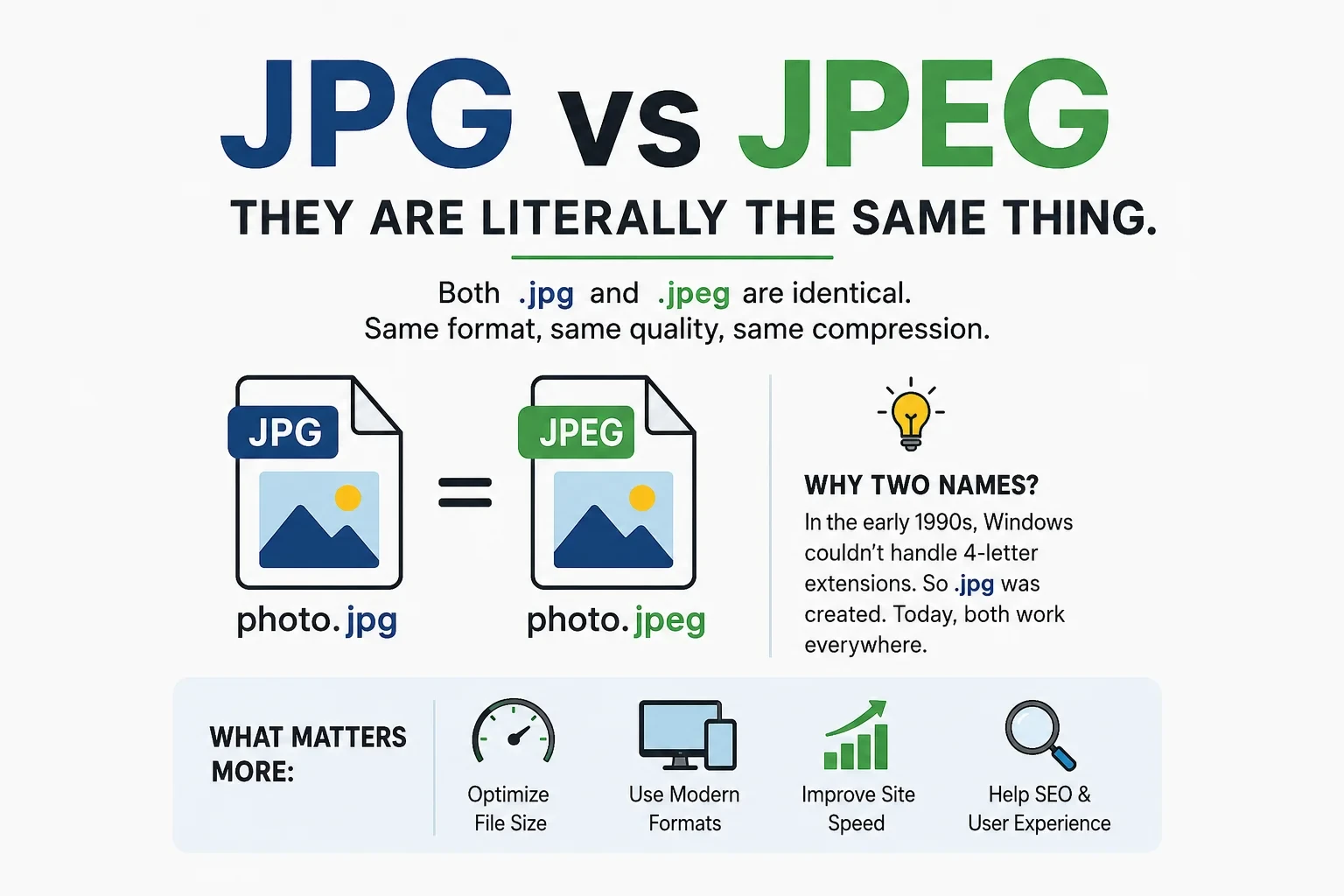
Quick answer: JPG and JPEG are 100% identical. Same format, same compression, same quality. The only difference is that .jpg has three letters and .jpeg has four. That's it. You can rename one to the other and nothing breaks.
The real question isn't JPG vs JPEG - it's when to use the JPEG format at all, how to stop losing quality every time you save, and why your images might be hurting your site speed right now.
- The One-Line Answer (Featured Snippet)
- Why Two Names Exist: The 30-Second History
- What JPEG Actually Is - and How It Works
- The Quality Trap: Why Re-Saving Destroys Your Images
- JPG vs PNG vs WebP vs AVIF: The Full Format Comparison
- When to Use JPEG (and When to Absolutely Avoid It)
- JPEG Quality Settings Explained: What Does "80%" Actually Mean?
- Baseline JPEG vs Progressive JPEG: Which Is Better for Your Website?
- How to Convert, Rename, or Change File Extensions
- JPEG for SEO & Core Web Vitals: What Google Actually Cares About
- What Your iPhone, Android, and DSLR Save By Default
- Common Myths About JPG/JPEG - Debunked
- Quick-Reference Cheat Sheet
The One-Line Answer
JPG and JPEG are the same image format. The extension .jpg exists only because Windows 95 and earlier couldn't handle file extensions longer than three characters. That limitation was removed nearly 30 years ago. Both extensions open, display, and compress identically on every modern device and browser.
Why Two Names Exist: The 30-Second History
In the early 1990s, Microsoft's MS-DOS and early Windows used the FAT-16 file system, which enforced the 8.3 filename rule: a maximum of 8 characters for the filename and exactly 3 characters for the extension.
The format's official name - .jpeg - had four letters. That broke the rule.
So on Windows, it was shortened to .jpg. Apple's Mac OS and Unix systems never had this limitation, so Mac and Linux users kept using .jpeg.
When Windows 95 dropped the 3-character cap in 1995, both extensions became equally valid. But by then, .jpg was already baked into software, cameras, and habits worldwide - so it stuck.
The timeline:- 1986 - Joint Photographic Experts Group (JPEG) committee formed
- 1992 - JPEG standard officially published (ISO 10918-1)
- ~1993 - .jpg extension created for Windows/DOS compatibility
- 1995 - Windows 95 removes the 3-character limit
- Today - Both .jpg and .jpeg are universally accepted; .jpg is the default in most software
What JPEG Actually Is - and How It Works
JPEG stands for Joint Photographic Experts Group - the ISO/IEC committee that created the standard. It's not just a file extension; it's a compression algorithm designed specifically for continuous-tone images like photographs.
Lossy Compression: The Trade-Off
JPEG uses lossy compression, which means it permanently discards image data to shrink file size. Here's what that looks like in real numbers:
- A raw camera photo might be 25 MB uncompressed
- Saved as JPEG at quality 85: roughly 3-5 MB (compression ratio ~5:1 to 8:1)
- Saved as JPEG at quality 60: roughly 1-2 MB (compression ratio ~12:1 to 25:1)
Typical JPEG compression ratios run 10:1 to 20:1 for photographic content, with minimal visible quality loss at ratios below 15:1.
How the Algorithm Actually Discards Data
JPEG compression works in three stages:
- Color space conversion - Converts RGB to YCbCr (separating brightness from color), then discards fine color detail since human eyes are less sensitive to color variation than brightness differences.
- Discrete Cosine Transform (DCT) - Breaks the image into 8x8 pixel blocks and converts them into frequency components. Low-frequency detail (broad shapes, gradients) is preserved; high-frequency detail (fine edges, noise) is aggressively compressed.
- Quantization - Rounds off the less-important frequency data. This is where the actual "loss" happens - and it's permanent.
That's why JPEG works brilliantly for photos (smooth gradients, complex color) but falls apart on line art, logos, and text (hard edges, flat color) - those have exactly the high-frequency detail that JPEG destroys.
JPEG Is Also a Container
Beyond the algorithm, the JPEG file format (technically JFIF or Exif) stores:
- The compressed pixel data
- EXIF metadata: camera model, GPS coordinates, aperture, shutter speed, focal length
- ICC color profiles: ensures consistent color across devices
- Optional thumbnail previews embedded inside the file
Stripping EXIF data alone can reduce a JPEG's file size by 10-30 KB - significant for web use.
The Quality Trap: Why Re-Saving Destroys Your Images
This is the most practical thing you can learn about JPEG, and most articles barely mention it.
Every time you open a JPEG and save it again, you lose quality - even if you make zero changes.
Here's why: each save runs the full lossy compression cycle again, discarding additional data on top of what was already discarded. After 5-10 re-saves at moderate quality, the image will show visible JPEG artifacts - blocky 8x8 patches, color smearing around edges, and muddy gradients.
The Right Workflow to Prevent Quality Loss
Do this:
- Keep your original in a lossless format: RAW, TIFF, or PNG
- Edit the lossless original
- Export/save once as JPEG at your target quality
- Never re-open and re-save the JPEG for further edits
Avoid this:
- Downloading a JPEG, editing it in Paint or Preview, and saving
- Running the same image through multiple compression tools
- Cropping or resizing in apps that silently re-save at lower quality
One exception: Simply renaming .jpg to .jpeg (or vice versa) does not re-compress the file. It's a metadata change only - no quality loss.
JPG vs PNG vs WebP vs AVIF: The Full Format Comparison
This is the comparison that actually matters. JPEG vs JPEG is trivial. JPEG vs other formats determines your image quality, site speed, and SEO performance.
| Feature | JPEG (.jpg/.jpeg) | PNG | WebP | AVIF |
|---|---|---|---|---|
| Compression type | Lossy | Lossless | Lossy + Lossless | Lossy + Lossless |
| Transparency support | No | Yes (alpha) | Yes | Yes |
| Animation support | No | No (use APNG) | Yes | Yes |
| Best for | Photos, gradients | Logos, screenshots, text, transparency | Everything (modern sites) | Everything (cutting-edge) |
| Worst for | Logos, text, transparency | Large photos (huge file sizes) | Very old browsers | Older browsers, some mobile |
| Typical file size | Medium | Large | ~25-34% smaller than JPEG | ~50% smaller than JPEG |
| Browser support | Universal (100%) | Universal (100%) | ~96% of browsers | ~92% of browsers |
| SEO/Core Web Vitals | Good (established) | Poor for photos | Excellent | Excellent (best in class) |
Real-World File Size Comparison
Same 1920x1080 photograph at visually equivalent quality:
| Format | File Size | vs. JPEG |
|---|---|---|
| JPEG (quality 85) | ~380 KB | Baseline |
| PNG | ~1.8 MB | +373% larger |
| WebP (quality 80) | ~250 KB | ~34% smaller |
| AVIF (quality 60) | ~185 KB | ~51% smaller |
When to Use JPEG (and When to Absolutely Avoid It)
Use JPEG when:- Photographs - complex color transitions and gradients are exactly what JPEG was designed for
- Hero images, banners, blog thumbnails - large colorful images where a bit of lossy compression is invisible
- Product photos on e-commerce sites - especially background-free shots already exported from a design tool
- Social media uploads - platforms like Instagram and Facebook re-compress images anyway, so uploading a high-quality JPEG avoids double-compression artifacts
- Email attachments - when file size matters more than pixel-perfect quality
- Camera output storage - shooting JPEG (not RAW) when storage is limited
- Logos or brand assets - JPEG artifacts will destroy the clean edges; use PNG or SVG
- Screenshots with text - text becomes blurry; PNG is always better
- Images with transparency - JPEG doesn't support transparent backgrounds at all; white fill is inserted
- Icons, line art, flat illustrations - use SVG (infinitely scalable) or PNG
- Images you'll edit multiple times - use TIFF or PNG as your working format
- Diagrams, charts, or infographics - fine detail and hard edges get mangled; use PNG or SVG
JPEG Quality Settings Explained: What Does "80%" Actually Mean?
When you save a JPEG in Photoshop, GIMP, or any export tool, you see a quality slider - usually 0 to 100 (or 1 to 12 in Photoshop). Here's what each range actually means:
| Quality Range | Visual Quality | File Size | Best Use |
|---|---|---|---|
| 90-100 | Nearly lossless | Very large | Print, archival, stock photography |
| 80-89 | Excellent | Large-ish | High-quality editorial web images |
| 70-79 | Very good | Medium | Most website photography - sweet spot |
| 60-69 | Good | Small | Mobile-first sites, thumbnails |
| 40-59 | Noticeable artifacts | Very small | Previews, lazy-load placeholders |
| Below 40 | Poor | Tiny | Not recommended |
The sweet spot for most websites is quality 75-82. At this range, a trained eye can barely spot quality loss, but file sizes are 40-60% smaller than quality 95.
Important: Quality "80" in Photoshop ≠ quality "80" in GIMP ≠ quality "80" in Lightroom. Each application uses its own scale and quantization tables. Always compare output visually, not numerically.
Baseline JPEG vs Progressive JPEG: Which Is Better for Your Website?
Most people have never heard of this distinction - and it directly affects how fast your site feels to users.
- Baseline JPEG: Loads top-to-bottom, one row of pixels at a time. Users see a half-loaded image while it downloads.
- Progressive JPEG: Loads in multiple passes, each sharper than the last. Users see a blurry-but-full version of the image immediately, then it sharpens as more data arrives.
- For web pages: Progressive JPEG almost always wins for perceived performance - users see something immediately, reducing bounce rate
- File size: Progressive JPEGs are typically 2-10% smaller than baseline equivalents
- CPU cost: Progressive decoding is slightly more CPU-intensive, but negligible on modern devices
- Core Web Vitals: Progressive loading improves Largest Contentful Paint (LCP) perception, though Google's LCP calculation is based on fully-loaded images
- Photoshop: File → Export → Save for Web → check "Progressive"
- GIMP: Export → JPEG → check "Progressive"
- ImageMagick:
convert input.jpg -interlace Plane output.jpg - Sharp (Node.js):
.jpeg({ progressive: true })
How to Convert, Rename, or Change File Extensions
Just Rename the Extension (No Quality Loss)
If you have photo.jpg and need photo.jpeg (or vice versa), you can rename the file directly. The image data is unchanged. Here's how:
Windows:- Open File Explorer
- Click "View" → check "File name extensions"
- Right-click the file → Rename
- Change .jpg to .jpeg (or the reverse)
- Click Yes on the warning
- Click the filename once to select it, then press Return to rename
- Edit the extension manually
- Click "Use .jpeg" when prompted
mv photo.jpg photo.jpegOr to rename all JPGs in a folder to JPEG:
for f in *.jpg; do mv "$f" "${f%.jpg}.jpeg"; doneConvert Between Formats (Changes Image Data)
Converting from JPEG to PNG or WebP does change the file (decompressing JPEG data and re-encoding it). Use these tools:
| Tool | Best For | Notes |
|---|---|---|
| Squoosh (squoosh.app) | Single images, visual comparison | Free, browser-based, excellent quality control |
| ImageMagick | Batch conversion in terminal | convert photo.jpg photo.webp |
| Sharp (Node.js) | Automated pipelines, server-side | Most performant for bulk operations |
| Photoshop / GIMP | Manual editing + export | Full control over quality settings |
| TinyPNG / TinyJPG | Quick lossy compression | Simple but limited control |
| Cloudinary / Imgix | CDN-level auto-format delivery | Automatically serves WebP/AVIF to supported browsers |
JPEG for SEO & Core Web Vitals: What Google Actually Cares About
Google's ranking algorithm doesn't care whether you use .jpg or .jpeg. It does care about:
1. Page Speed (Core Web Vitals)Images are the #1 cause of poor Largest Contentful Paint (LCP) scores - and LCP is a direct Google ranking factor since 2021.
- A page scoring LCP under 2.5 seconds is rated "Good"
- Over 4 seconds is "Poor" - and Google will deprioritize it
- Unoptimized JPEGs on a typical blog can account for 60-80% of total page weight
Practical impact: Switching from unoptimized JPEG to WebP typically reduces image payload by 30-35%, which can improve LCP by 0.5-1.5 seconds - often the difference between "Good" and "Needs Improvement."
2. Image Dimensions and Responsive ImagesServing a 3000px wide image on a mobile screen that displays it at 375px wide wastes ~97% of the pixels. Use the srcset attribute:
<img
 src="photo-800w.jpg"
 srcset="photo-400w.jpg 400w, photo-800w.jpg 800w, photo-1600w.jpg 1600w"
 sizes="(max-width: 600px) 400px, (max-width: 1200px) 800px, 1600px"
 alt="Descriptive alt text"
 loading="lazy"
>Google reads alt text, not file extensions. An image named IMG_4823.jpg with no alt text is invisible to search engines. Use descriptive, keyword-relevant alt text every time.
4. Modern Format DeliveryGoogle's Lighthouse tool actively penalizes sites for not using WebP or AVIF. The recommended approach in 2025/2026:
- Serve AVIF to browsers that support it (~92%)
- Fall back to WebP for others (~96%)
- Use JPEG as the universal fallback
In HTML:
<picture>
 <source srcset="photo.avif" type="image/avif">
 <source srcset="photo.webp" type="image/webp">
 <img src="photo.jpg" alt="Your description here">
</picture>
Most modern image CDNs (Cloudflare Images, Cloudinary, Imgix) handle this automatically.
5. File NamingName image files descriptively. golden-retriever-puppy.jpg tells Google what's in the image. DSC_0049.jpg tells Google nothing.
What Your iPhone, Android, and DSLR Save By Default
You may not be choosing JPEG - your devices are choosing for you.
| Device / Software | Default Format | Notes |
|---|---|---|
| iPhone (iOS 11+) | HEIC (.heic) | Smaller than JPEG; exports as JPEG for sharing |
| iPhone (camera roll share) | JPEG | Auto-converts HEIC on share |
| Android (most models) | JPEG | Some Pixel phones offer HEIC option |
| Canon/Nikon/Sony DSLRs | JPEG or RAW | JPEG mode = in-camera compression applied |
| Adobe Lightroom export | JPEG (default) | Configurable quality, color profile, EXIF |
| Adobe Photoshop "Save for Web" | JPEG | Offers progressive, quality, metadata stripping |
| Windows Photos app save | JPEG | Often saves at reduced quality silently |
| Google Photos download | JPEG | Strips some EXIF; may apply compression |
| WhatsApp / Instagram upload | Re-compressed JPEG | Platforms apply their own compression (~50-80% quality) |
Key takeaway: If you shoot in HEIC on iPhone and need to share files widely, always export as JPEG for universal compatibility. If you're a photographer editing work, always start from RAW.
Common Myths About JPG/JPEG - Debunked
- Myth 1: "JPEG files degrade just from sitting on your hard drive."
False. JPEG files only lose quality when they are opened and re-saved. Storing a JPEG for 10 years causes zero quality loss. - Myth 2: "Higher JPEG quality = lossless."
False. Even JPEG quality 100 is still lossy. Quality 100 just means the quantization step discards the least data possible - but it still discards some. For true lossless storage, use TIFF, PNG, or RAW. - Myth 3: "Converting JPEG to PNG improves quality."
False. Converting JPEG to PNG creates a lossless copy of the already-degraded JPEG data. You get a larger file with the same artifacts - you cannot recover discarded data. - Myth 4: "JPG and JPEG have different compression algorithms."
False. They use the same identical compression algorithm. Same MIME type (image/jpeg), same binary structure, same everything. - Myth 5: "JPEG is outdated and you should stop using it."
Mostly false. JPEG is still the right choice for maximum compatibility, especially when you don't control the viewing environment. WebP and AVIF are better where supported, but JPEG remains the universal fallback. - Myth 6: "Renaming .jpg to .jpeg makes the file larger."
False. Renaming changes only the filename characters - no image data is touched, no re-encoding occurs.
Quick-Reference Cheat Sheet
JPG vs JPEG: One-Sentence Summary
JPG and JPEG are identical. .jpg exists because Windows couldn't handle 4-letter extensions in 1992. Use whichever your software defaults to.
Format Decision Tree
Do you need transparency?
 YES → PNG (or WebP/AVIF)
 NO → Is it a photograph or complex gradient?
 YES → JPEG (or WebP/AVIF for modern browsers)
 NO → Is it a logo, icon, or SVG-style graphic?
 YES → SVG or PNG
 NO → Is it animated?
 YES → WebP or AVIF
 NO → JPEG is fine
Image Format Cheat Sheet
| Situation | Recommended Format |
|---|---|
| Blog hero photos | WebP (JPEG fallback) |
| Product photos (white background) | JPEG or WebP |
| Logo on website | SVG (first choice) or PNG |
| Screenshot with text | PNG |
| Social media upload | JPEG at quality 85-90 |
| Email newsletter image | JPEG at quality 80 |
| Print design (to printer) | TIFF or JPEG at quality 95+ |
| Photographer master file | RAW or TIFF |
| Animated image | WebP or AVIF |
| Maximum compatibility needed | JPEG |
JPEG Quality Reference
| Quality | Use When |
|---|---|
| 95-100 | Archival, print, stock |
| 80-90 | Premium web publishing |
| 75-80 | Most websites (sweet spot) |
| 65-74 | Mobile, thumbnails |
| Below 65 | Previews only |
The Bottom Line
JPG and JPEG are the same. That confusion has been cleared up since 1995. What actually matters is understanding how JPEG compression works, when to use JPEG vs other formats, and how to avoid destroying your images with repeated saves.
For most modern websites, the smartest move is to:
- Store originals as RAW or TIFF
- Export to JPEG at quality 75-82 for maximum compatibility
- Also generate WebP (or AVIF) versions for browsers that support them
- Use the
<picture>element or an image CDN to serve the right format automatically
That combination gives you universal compatibility and maximum performance - and it starts with understanding that .jpg and .jpeg are just two names for the same workhorse format.
Last updated: May 2026
Try JPEG to JPEG
Convert images instantly with no watermarks and no unnecessary steps.
Compress Image Now