English
How to Resize PNG Free and Online - Without Losing Any Quality
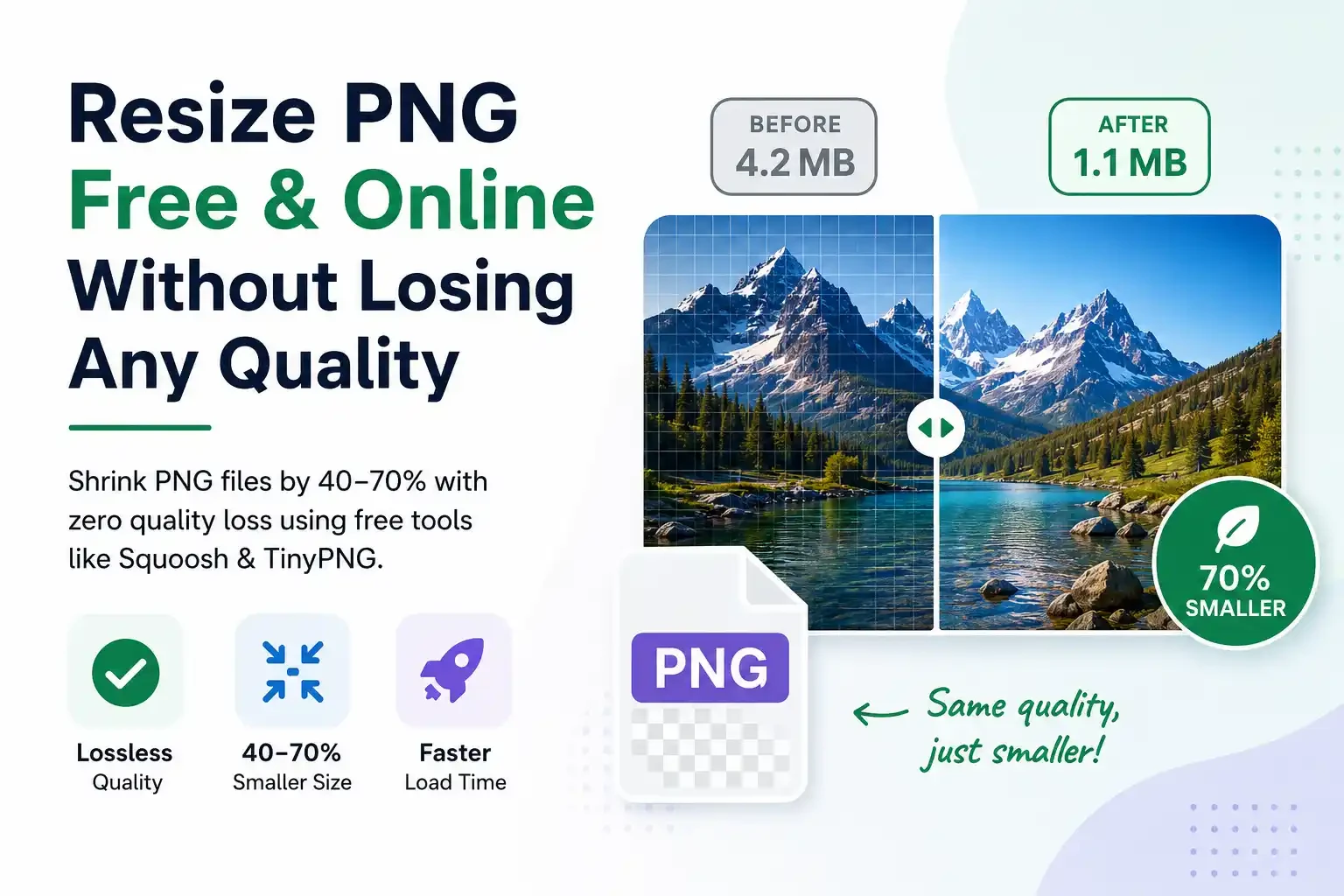
PNG files are enormous by nature. They don't have to be. Here's why they balloon to unnecessary sizes - and the exact tools and techniques to resize PNG free online without touching a single pixel of visible quality.
Someone in a design forum recently asked something that's deceptively simple: is there a way to reduce a PNG file size without losing quality? Sixty-four people upvoted the question. That number tells you something - this isn't a niche problem. It's something that trips up designers, developers, bloggers, and anyone working with images. The good news is yes, you absolutely can resize PNG free online using tools that handle the heavy lifting in seconds. The even better news is that when done correctly, the resulting image is pixel-for-pixel identical to what you started with.
One commenter in that thread put it well: they were shocked to keep finding images 5,000 pixels wide sitting on websites doing nothing useful - bloating load times, burning bandwidth, and quietly killing SEO rankings. An easy fix, but an easy mistake to make if you don't know what you're looking for.
This post explains exactly what's happening inside a PNG file, why it gets so large, and three concrete methods to shrink it - none of which require paid software, a design degree, or more than five minutes.
Why PNG Files Are So Large in the First Place
PNG uses lossless compression - meaning every pixel is stored exactly as captured, with no quality trade-offs. That's brilliant for logos, icons, screenshots, and anything with sharp edges or transparency. It's overkill for photographs, and it results in files that can be 3-10x larger than an equivalent JPEG.
But here's what most people don't realise: even among PNG files themselves, there's a massive range of possible file sizes for the same image. A PNG exported from Photoshop at default settings might be 4 MB. The exact same image, run through a proper PNG optimiser, might come out at 900 KB - with zero visible difference. The difference isn't quality, it's the efficiency of the compression algorithm and whether metadata, colour profiles, and redundant chunks have been stripped out.
The practical upshot: resizing a PNG doesn't have to mean degrading it. It means optimising how the same data is stored - and for most PNG files, there is a lot of room to optimise.
The Three Ways to Reduce PNG File Size Without Losing Quality
Method 1 - Lossless PNG Compression (True Zero Quality Loss)
This is the gold standard. Lossless PNG compression tools - like PNGQuant, OptiPNG, or the free online tool Squoosh - re-encode the PNG file using a more efficient algorithm. The output image is mathematically identical to the input. No pixels change. No detail is lost. The file just takes up less space because redundant data has been eliminated.
Open your PNG in Squoosh (squoosh.app) - free, no login
This is the fastest way to resize PNG online free. The interface shows the original and compressed version side by side in real time, so you can verify quality before downloading.
Select "OxiPNG" or "PNG" as the output format
OxiPNG is a lossless encoder - it uses a smarter algorithm to store the same pixel data in fewer bytes. No colour information is discarded. Choose this when transparency must be preserved.
Download and compare file size against the original
Most PNG files see a 40-70% reduction in file size with zero perceptible change. Check the KB counter at the bottom of Squoosh - it updates live as you adjust settings.
Method 2 - Palette Reduction (Huge Gains for Logos and Icons)
Full-colour PNG files (PNG-32) store colour information for every individual pixel across 16 million possible colours. For a photograph, that makes sense. For a logo with five colours, it's an enormous waste. Converting to PNG-8 (256-colour palette) or using quantisation tools like TinyPNG dramatically shrinks the file - often by 60-80% - with no visible difference for flat-colour artwork, icons, and illustrations.
Logos, icons, maps, charts, and any PNG with large areas of flat colour - like RPG assets - are ideal candidates for palette reduction. Photographs with gradients are not; use lossless compression or WebP conversion for those instead.
Method 3 - Convert to WebP (The Modern Format Switch)
WebP is a next-generation image format developed by Google that achieves significantly smaller file sizes than PNG - for both lossless and lossy compression. A lossless WebP is typically 26% smaller than the equivalent PNG. A lossy WebP at high quality (90-95%) looks identical to the PNG but is 60-80% smaller.
All major browsers now support WebP. If you're optimising images for a website, converting PNG to WebP using a free tool like Squoosh or CloudConvert is one of the highest-impact single changes you can make for page speed - and it directly supports SEO rankings, since Core Web Vitals scores penalise slow image load times.
Need to keep the PNG format? If your platform, game engine, or upload portal requires a .png file specifically, stick with Method 1 or 2 above. WebP is the best outcome for web use, but not every context accepts it yet.
Best Free Online Tools to Resize and Compress PNG
These are the tools worth knowing - each one handles PNG compression differently, and the right choice depends on your image type and intended use:
PNG vs WebP vs JPEG - Which Format Should You Actually Use?
| Format | Best for | Transparency | Relative file size |
|---|---|---|---|
| PNG | Logos, icons, screenshots, maps with sharp edges | Yes | Large |
| JPEG | Photographs, product images, portraits | No | Small-medium |
| WebP | Everything on the web - photos and graphics both | Yes | Smallest |
Why This Matters Beyond Just Storage Space
The people commenting on that Reddit thread weren't just talking about hard drive space. They were talking about website performance, SEO, and user experience. Images that are 5,000 pixels wide on a page where they display at 800px wide are doing zero additional good - and they're adding real load time that real users experience.
Google's Core Web Vitals - which directly influence search rankings - include Largest Contentful Paint (LCP), which measures how fast the main image on a page loads. An uncompressed 4 MB PNG sitting at the top of a blog post can single-handedly tank that score. The same image, properly compressed to 400 KB using a free online PNG resize tool, loads ten times faster and looks identical on screen.
Serving unnecessarily large images at scale - millions of page loads a day - adds up to meaningful energy consumption. Smaller images help the climate and the business simultaneously. That's a rare alignment.
Frequently Asked Questions
Can I reduce PNG file size without losing quality?
Yes - and it's one of the most misunderstood things about image compression. Lossless PNG compression tools like Squoosh (using OxiPNG) and TinyPNG re-encode the file using a more efficient algorithm without changing a single pixel. The output image is visually and mathematically identical to the input. Most PNG files can be reduced by 40-70% this way with absolutely no quality loss. The savings come from stripping redundant metadata, colour profiles, and inefficient compression chunks - not from reducing image detail.
What is the best free tool to resize PNG online?
Squoosh (squoosh.app) is the most capable free online PNG resize tool available. It lets you adjust dimensions, choose between lossless and lossy compression, preview the before/after side by side, and see the exact output file size in KB before downloading - all without creating an account. For logos and flat-colour artwork specifically, TinyPNG (tinypng.com) is the specialist choice and consistently delivers the best palette-reduction results. Both are completely free for standard use.
Does resizing a PNG reduce its quality?
Compressing a PNG using lossless methods does not reduce quality - the image is identical before and after. However, reducing the pixel dimensions (making the image physically smaller) does permanently remove pixels, which means scaling back up later will result in a blurry image. Always keep a copy of your original before resizing dimensions. If you only need to reduce the file size in KB without changing the pixel count, use a lossless PNG compression tool and leave the dimensions untouched.
Should I convert PNG to WebP to save space?
For website use, converting PNG to WebP is one of the best optimisation moves you can make. Lossless WebP is typically 26% smaller than PNG, and lossy WebP at 90%+ quality is 60-80% smaller with no visible difference. All major browsers support WebP, and Google's Core Web Vitals directly reward faster image loading. Convert using Squoosh or CloudConvert. The one exception: if your platform, CMS, or upload system specifically requires a .png file, stick with lossless PNG compression instead.
Why does PNG compress better than JPEG for some images?
PNG uses lossless compression, which is extremely efficient for images with large areas of flat colour, hard edges, and limited colour palettes - like logos, icons, charts, and illustrations. JPEG's lossy compression produces visible artefacts (blurring, blockiness) around sharp edges, making it a poor choice for these image types even though JPEG files are generally smaller. For photographs with smooth gradients, JPEG or WebP wins on file size. For anything with transparency, text overlaid on colour, or flat graphic design, PNG compressed with a proper tool is the right format.
The Bottom Line
The short answer to the original question - yes, there's absolutely a way to resize PNG files without losing quality, and most of the best tools to do it are completely free online. Run your PNG through Squoosh or TinyPNG, check the side-by-side comparison, and download. Sixty seconds, zero cost, and your image looks exactly the same at a fraction of the size.
Try Free PNG Resizer & Compressor
Resize and compress PNG files online - no uploads, no watermarks, lossless quality preserved.
Resize PNG Now →Also Read: