English
Should You Convert HEIC to JPG Before Archiving iPhone Photos? (Honest Guide for 10,000+ Photos)
Picture this: it is 2035. You plug in an old hard drive filled with family photos from your iPhone. You double-click a file. Instead of memories, you get an error message saying “unsupported format.”
That fear is exactly why thousands of iPhone users are asking the same question right now: should you convert HEIC photos to JPG before archiving them long term?
After personally backing up more than 11,000 iPhone photos and videos across multiple drives, cloud backups, and offline archives, the answer turned out to be more complicated than most guides make it sound.
This article explains the real pros and cons of converting HEIC to JPG for long-term storage, what quality you lose, which tools actually work offline, and how to future-proof your photo archive properly.
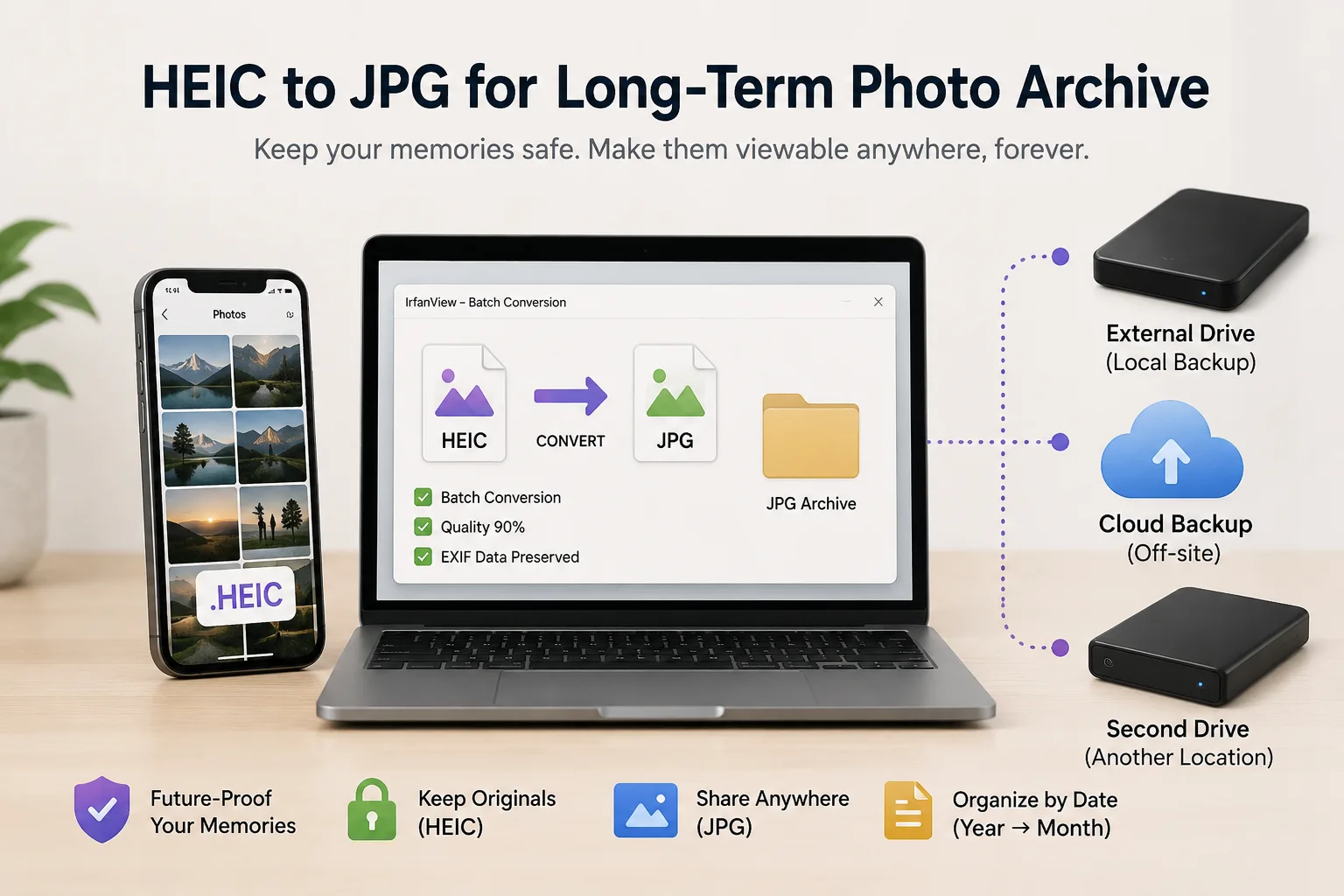
Example workflow for long-term iPhone photo archiving using HEIC and JPG backups.

Real-world archive setup tested with 11,000+ iPhone photos
If you want the safest long-term setup, keep the original HEIC files as a master backup and create a second JPG archive for universal compatibility.
What Is HEIC and Why Does Apple Use It?
Apple switched iPhones to the HEIC image format starting with iOS 11 in 2017. Most people never noticed because photos still looked normal in the Photos app. The only obvious difference appeared after transferring files to Windows or older software.
Instead of saving photos as .jpg files, newer iPhones save them as .heic files using the HEIF image standard.
The reason is simple: HEIC stores high-quality photos using much smaller file sizes than JPG.
| Feature | HEIC | JPG |
|---|---|---|
| Average 12MP file size | ~2-3 MB | ~4-6 MB |
| Compression efficiency | Higher | Lower |
| Color depth | 16-bit | 8-bit |
| Live Photo support | Supported | Not supported |
| Works on older Windows apps | Often no | Almost always |
| Long-term compatibility confidence | Uncertain | Very high |
Technically, HEIC is the better image format. The problem is compatibility.
JPG has existed since the early 1990s. Every operating system, printer, browser, photo editor, and cloud platform understands it immediately. HEIC support still depends heavily on codecs, updates, and newer software.
How to Store HEIC Files Safely for Long-Term Archiving
Storing HEIC files correctly is just as important as choosing whether to convert them. A well-organized archive protects your photos from accidental loss, corruption, and compatibility issues in the future.
Keep the Original HEIC Files
Do not replace your original HEIC files with JPGs. Storage is inexpensive compared to the value of your memories. Keep the HEIC files as your permanent archive because they preserve everything captured by your iPhone. If you need better compatibility with older devices or software, simply create JPG copies while leaving the originals untouched. This gives you the best of both worlds: maximum quality and universal compatibility.
Organize Photos by Year and Month
Try not to keep all your photos in one large folder. It might seem fine at first, but finding a specific picture years later can become frustrating. A simple habit of organizing your photos by year and month makes your archive much easier to browse and maintain. Most photo management apps also work better with this type of folder structure, making it easier to search and sort your memories over time.
Organize Photos by Year and Month
Keeping thousands of photos in one folder can quickly become overwhelming. Instead, sort them into folders by year and month so they are easier to browse later. Whether you are looking for a family vacation, a birthday, or an old event, a well-organized folder structure saves time and keeps your photo archive easy to manage. It is also the organization method used by most photo management apps, so your collection stays neatly arranged as it grows.
Preserve EXIF Metadata
Do not overlook the photo metadata. Every HEIC photo includes useful details like the date it was taken, the device used, camera settings, and, if you enabled location services, the GPS location. When moving or converting your photos, choose a tool that keeps this information intact. It makes your archive much easier to search, organize, and manage years down the road
Verify Your Backup After Copying
Take a few minutes to check your backup before calling it done. After copying your HEIC files to another drive, make sure all the photos were transferred and open a few at random to confirm they load properly. A quick verification now can save you from discovering missing or corrupted files years later, when those memories may be impossible to recover.
Never Rely on a Single Copy
Do not rely on a single hard drive to protect your memories. Drives can fail, get damaged, or be lost, so it is better to follow the 3-2-1 backup rule. Keep at least three copies of your photo archive, store them on two different types of storage (such as an external drive and cloud storage), and keep one copy in a different location. This simple approach helps protect your photos from hardware failures, accidental deletion, theft, and unexpected disasters.
Should You Convert HEIC to JPG Before Archiving?
For long-term photo preservation, the safest answer is usually yes - but not necessarily by replacing the original files.
The concern is not whether HEIC works today. It clearly does. The concern is whether HEIC will remain universally readable 20 or 30 years from now.
Digital formats disappear more often than people think. Older formats like Kodak Photo CD, RealMedia, and Windows Media Photo once looked future-proof too. Today, opening them often requires hunting for outdated software.
JPG is different because it became a universal standard decades ago. Even extremely old devices can still open JPG images without additional software.
If your goal is maximum future compatibility, JPG is still the safest archival format.
The Important Trade-Off
Converting HEIC to JPG is not completely lossless.
Every JPG conversion introduces another round of compression. At high-quality settings the difference is usually invisible, but technically some image data is lost during conversion.
You also lose several HEIC-specific features:
- Live Photo animation data
- Portrait Mode depth information
- HDR gain maps
- Some advanced metadata structures
If you plan to re-edit your photos professionally later, keeping the original HEIC files matters.
That is why the best long-term strategy is usually:
- Keep original HEIC files as your master archive
- Create JPG copies for universal viewing and compatibility
Storage is relatively cheap. Lost memories are not.
Should You Store HEIC or JPG?
Choosing between HEIC and JPG depends on how you plan to use your photo archive. HEIC is the better choice if you want to preserve the original quality, save storage space, and keep all the information captured by your iPhone. However, JPG remains the safer option when you need maximum compatibility with older devices, software, and platforms.
For most people, the best approach is not choosing one format over the other. Keep your original HEIC files as the master archive and create JPG copies for sharing, printing, or accessing photos on devices that do not support HEIC.
The following comparison shows when HEIC or JPG makes more sense for different archiving situations:
| Situation | HEIC | JPG |
|---|---|---|
| Long-term editing | Yes | No |
| Universal compatibility | No | Yes |
| Apple ecosystem | Yes | No |
| Family archive | Yes + JPG copy | Yes |
Why Most HEIC Archive Guides Miss the Point
Most articles about HEIC conversion focus only on how to click buttons inside a converter. Very few talk about the bigger archival question.
After testing multiple popular guides, several problems kept showing up repeatedly:
- Too much focus on promoting paid software
- No discussion of quality loss
- No explanation of Live Photo limitations
- No backup strategy
- No realistic discussion about future compatibility
- No mention of long-term storage planning
Converting HEIC to JPG is not just a format change. For many people, it is part of preserving family history.
Best Offline Tools for HEIC to JPG Conversion
For long-term archives, offline conversion tools are strongly recommended. Uploading thousands of personal family photos to random websites is not ideal for privacy or reliability.
Tool #1: IrfanView (Best for Large Photo Libraries on Windows)
IrfanView remains one of the fastest and most reliable offline converters for Windows users.
It has existed since the 1990s, handles huge batches efficiently, and works well for archives containing thousands of photos.
| Feature | IrfanView |
|---|---|
| Platform | Windows |
| Offline conversion | Yes |
| Batch support | Excellent |
| EXIF preservation | Yes |
| Best use case | 10,000+ photo archives |
For best results, install:
- IrfanView
- The official plugin pack
- CopyTrans HEIC codec or Microsoft HEIF extensions
During testing, converting roughly 11,000 HEIC files took between 1-2 hours depending on storage speed and CPU performance.
The sweet spot for JPG quality was around 88-92%. Higher settings created unnecessarily large files without visible quality improvements.
Tool #2: HandBrake (Best for iPhone Videos)
Most iPhone users focus only on photos and forget that videos are also using modern compression formats.
Many iPhone videos are stored as HEVC-encoded .MOV files, which can also create compatibility issues on older systems.
HandBrake is one of the best free tools for converting those videos into widely supported MP4 files.
| Feature | HandBrake |
|---|---|
| Platform | Windows / Mac / Linux |
| Offline conversion | Yes |
| Best output format | H.264 MP4 |
| Best use case | Long-term video compatibility |
One important thing to know before converting videos: H.264 MP4 files are larger than HEVC originals. Expect storage usage to increase significantly.
Tool #3: XnConvert (Best Cross-Platform Option)
XnConvert is one of the easiest cross-platform solutions for HEIC conversion.
Unlike some Windows-only tools, it works well across Windows, macOS, and Linux systems.
| Feature | XnConvert |
|---|---|
| Platform | Windows / Mac / Linux |
| Offline support | Yes |
| Batch conversion | Yes |
| Ease of use | Very beginner-friendly |
It is slightly slower than IrfanView for extremely large batches, but the cleaner interface makes it easier for casual users.
Best Folder Structure for Long-Term Photo Storage
The archive structure itself matters almost as much as the image format.
Dumping 20,000 files into one folder creates a nightmare later when you actually need to find something.
A simple year-and-month structure works best long term:
 Photos Archive
 └── 2021
 ├── 01-January
 ├── 06-June
 └── 12-December

 └── 2022
 └── ...
Most iPhone photos already contain EXIF date information, so software like digiKam can automatically sort entire libraries by date taken.
Best Places to Store HEIC Files
Choosing the right storage option for your HEIC photo archive depends on the size of your collection, how often you access your photos, and how much protection you need. There is no single perfect storage solution for everyone. A combination of local storage and cloud backup usually provides the best balance between accessibility, security, and long-term reliability.
For smaller photo libraries, an external drive combined with cloud storage may be enough. For large family archives containing thousands of HEIC files, options like NAS or multiple backup drives provide better control and protection.
Here are some of the most reliable places to store HEIC files for long-term preservation:
| Storage | Recommended | Why |
|---|---|---|
| External HDD | Yes | Cheap and reliable for large photo archives |
| SSD | Yes | Fast performance but more expensive |
| NAS | Yes | Best option for large family photo libraries and shared storage |
| iCloud | Yes | Keeps original HEIC files and works seamlessly with Apple devices |
| Google Photos | Yes | Easy syncing and convenient access across devices |
| OneDrive | Yes | Good integration with Windows and Microsoft services |
The 3-2-1 Backup Rule
One external hard drive is not a real backup.
Drives fail. SSDs fail. Cloud accounts get locked. People accidentally delete folders.
The safest archival strategy follows the classic 3-2-1 rule:
| Backup Rule | Meaning |
|---|---|
| 3 Copies | Keep at least three total copies of your photos |
| 2 Storage Types | Example: external drive + cloud storage |
| 1 Off-Site Copy | Keep one backup in another physical location |
A practical setup could look like this:
- Main photo archive on your computer
- Second copy on an external HDD
- Third copy in cloud backup storage or another house
That setup protects against hardware failure, theft, accidental deletion, and natural disasters.
FAQ about HEIC to JPG
Will converting HEIC to JPG reduce quality?
Technically yes, because JPG uses lossy compression. In real-world use, high-quality JPG exports around 88-92% usually look identical to the original unless you zoom in extremely close.
Should I delete the original HEIC files?
Not immediately. Keep the originals until you verify the JPG copies are complete and backed up properly. For important memories, keeping both formats is safer.
Do Live Photos survive conversion?
No. JPG only preserves the still image. The motion clip attached to Live Photos is lost during conversion.
Are online HEIC converters safe?
For a few casual images, usually yes. For massive personal archives or sensitive family photos, offline tools are much safer.
Is HEIC going away?
Probably not anytime soon. Apple continues using it because it is efficient and modern. The real issue is long-term universal compatibility outside the Apple ecosystem.
Can I store HEIC files on an external hard drive?
Yes, you can store HEIC files on an external hard drive without any problem. A hard drive does not care whether your photos are in HEIC, JPG, or another format - it simply stores the files. In fact, an external HDD is one of the most practical options for keeping a large photo archive because it offers plenty of storage at a lower cost. However, do not rely on a single drive. Keep another copy somewhere else to protect your memories if the drive fails.
Is cloud storage safe for HEIC files?
Yes, most modern cloud storage services can safely store HEIC files. Services like iCloud, Google Photos, and OneDrive support HEIC uploads and allow you to access your photos from different devices. The important thing is to check whether the service keeps your original files or applies any compression during upload. For valuable family archives, cloud storage works best as an additional backup rather than your only copy.
Does copying HEIC files reduce quality?
No, simply copying HEIC files from one location to another does not reduce image quality. File copying is just a transfer process - the original data remains unchanged. Quality loss usually happens when you convert HEIC to another format like JPG because JPG uses lossy compression. As long as you are only moving or backing up your HEIC files, your photos will remain exactly the same.
Should I zip HEIC files before archiving?
In most cases, there is no need to zip HEIC files before archiving. HEIC images are already compressed, so creating a ZIP file usually does not reduce the size significantly. Keeping photos as individual files also makes them easier to browse, search, and recover later. ZIP files can be useful if you need to move a large collection of photos together, but they are not necessary for regular long-term storage.
Can Windows store HEIC files without converting?
Yes, Windows can store HEIC files without converting them. You can copy, move, and back up HEIC photos just like any other file type. For viewing HEIC images directly in Windows, you may need HEIF image support installed, especially on some older Windows versions. Once the required support is available, you can open and manage HEIC photos without changing them to JPG.
Final Verdict
If your main goal is preserving photos for the next 20-30 years with the fewest compatibility headaches possible, creating JPG copies is still the safest move.
The best overall approach is:
- Keep original HEIC files as master backups
- Create JPG versions for compatibility
- Convert important videos to H.264 MP4
- Organize archives by date
- Keep multiple backups in different locations
One weekend spent organizing your archive properly can protect decades of memories.
Convert HEIC to JPG Safely
Create universally compatible JPG copies from your iPhone HEIC photos while keeping your originals protected.
Try the Tool NowAlso Read: